Stamp
Dec 06, 2006 4 Comments
1. Draw a Rectangle Path
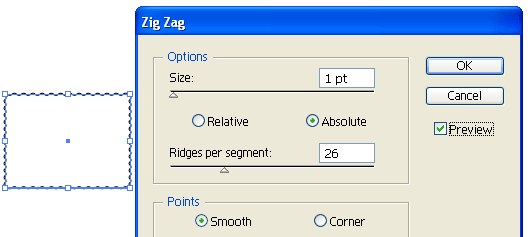
Select the Rectangle Tool, create a box like the image below. Go to Effect > Distort & Transform > Zig Zag.

Zig Zag Options
When the Zig Zag window popups, check Preview to preview the result, enter Size=1, Ridges per segment=26, then click OK.
2. Add Drop Shadow Effect
With the path selected, go to Effect > Stylize > Drop Shadow, and enter the following setting: Opacity=50, X Offset=1 Y Offset=2, Blur=3, and select black color.

3. Place in Your Artwork
Now you can remove the stroke color and place in your artwork and align them center. That’s it!

Bonus Tips
If you are creating this stamp for print, make sure your Document Raster Effects Settings is 300dpi or you will get pixelated print out. To change your setting, go to Effect > Document Raster Effects Settings. If you are designing for web/screen, leave it as 72dpi because higher dpi takes more memory.

Comic Style Strokes
Dec 06, 2006 9 Comments
1. Create an Art Brush
Use the Pen Tool and create a path like the image on the left. Drag it to the Brushes Library pallate. If your Brushes is not showing, go to Window > Brushes or press F5.

New Art Brush
When the New Brush options window popup, select New Art Brush.

Art Brush Options
Then the New Art Brush Options will pop out, leave everything as default, but select Tints for Colorization Method. Click Ok.

2. Apply Your Strokes
Now you can apply this Art Brush to any stroke by clicking the Art Brush in the Brushes library.

Bonus Tips
You can change your stroke color and weight to get various stroke effect.

Glossy Button
Dec 06, 2006 10 Comments
1. Create the Circle Shapes
First create a circle path and fill it with orange color. Then Copy (Ctrl+C) it and Paste in Front (Ctrl+F). Scale down about 40% and drag it slight below the center point of the orange circle.

2. Blend Tool
Select the Blend Tool, click on the top edge of the yellow circle and then click again on the top edge of the orange circle. Or you can blend them by selecting both circles, go to Object > Blend > Make (Ctrl+Alt+B).

3. Add Final Light Reflection
Make an oval path and fill it with black & white Gradient and place it on top of the circles. Note if your color setting is CMYK, make sure the black for the gradient is full black(C=100, M=100, Y=100, K=100). With the oval path selected, go to Transparency pallate, select Screen Blend Mode. If your Transparency is not showing, go to Window > Transparency or press Ctrl+Shift+F10.

Advantages
There are serveral advantages to create this glossy button with Illustrator than Photoshop:
- It is vector, which mean it is scalable.
- It is easier and faster to make this with Illustrator (less steps).
- Easier to change colors, just need to fill the circles with different colors.

Illustrator Template
Dec 06, 2006 5 Comments
Introduction
I personally use Adobe Illustrator alot, to save my time and work more efficiently, I have created serveral custom Libraries Illustrator Templates. I have one template with only RGB Color Swatches, one with CMYK Color Swatches, and one with minimal Library items. The minimal Libraries template has removed all unused/unwanted Library items and is use to create my Illustrator tutorial source file. This way I can cut down on the file size because each Library item in your file costs memory. The templates store the Color & Gradient Swatches, Art Brushes, and Graphic Styles that I commonly use in my illustration. Imagine the time it will cost if I need to remove all unused Libraries every time I create a new tutorial file. Or I need to open up an existing file to copy the Color Swatches & Graphic Styles that I want.
Illustrator Template can store: Artboard setting, Color/Gradient Swatches, Graphic Styles, Symbols, Layers, graphic placeholders, and more. For full detailed information on Illustrator Template, please read Illustrator’s Help files.
1. Create Your Custom Libraries
Most of you probably already know how to create Libraries, so I’m not going to explain all the details. Creating your Libraries is very easy, just drag your object in the Library pallate or select the object and click on the New icon. To remove your Library items, select the items that you want to remove and click on the Trash Can icon.

2. Save Your Template
After you’ve done with the Libraries, go to File > Save as Template and name your template that is best describe the content/setting of the file, ie. RGB Color Setting, For Print.

3. New From Template
Now go to File > New From Template and Adobe Illustrator will create a new file with all the setting you’ve created in your template.

Conclusion
Start making Illustrator Template now and save your working time!


